Skip to content

When you are getting ready to print a big project, every tiny detail matters. The paper you pick and the quality of your ink tell the world how much you care about your brand. However, one specific word on your screen often trips people up.
Mastering print collation is the secret to making sure your instruction guides, product inserts, or box templates come out of the machine in the exact order you need. If you are creating professional packaging, like custom cosmetic boxes this setting is a lifesaver.
However, it stops you from wasting hours sorting paper by hand and prevents costly mistakes. Simply put, it ensures your final product looks polished and professional every single time.
What Does Collate Mean?
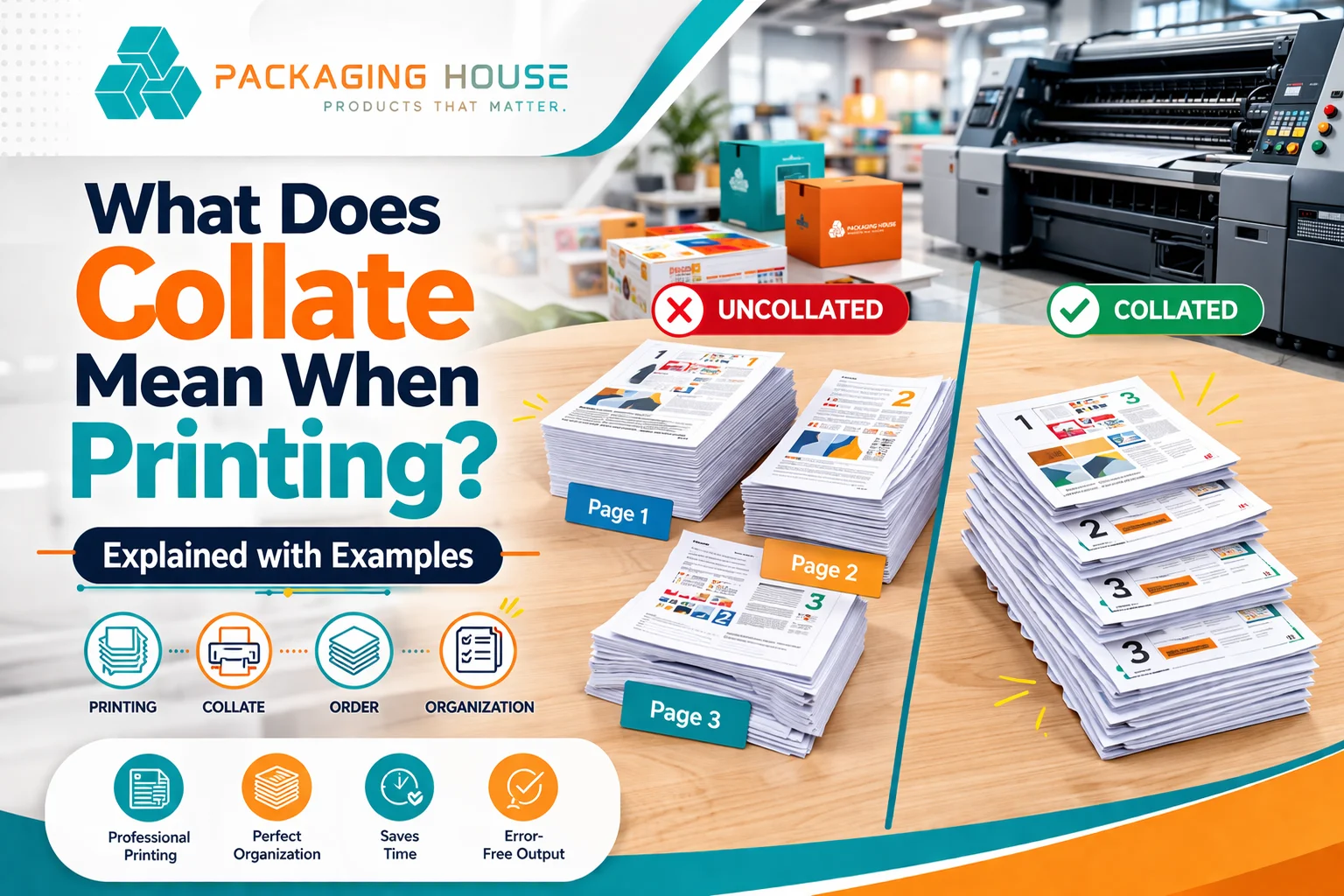
In simple words, to collate means to arrange your pages in a specific, repeating sequence. When you open your printer settings, you will usually see a collate box. This setting tells the printer exactly how to stack your sheets as they land in the tray.
Think of it as a digital assistant that organizes your work for you.
Collate ON (The Set Method): The printer finishes Page 1, then Page 2, then Page 3. It then starts the next full set. You get neat piles like 1-2-3, 1-2-3, and 1-2-3.
Collate OFF (The Batch Method): In this method, the printer finishes every single copy of Page 1 before it even starts Page 2. You end up with giant stacks like 1-1-1, then 2-2-2, and then 3-3-3.
What Does Collate Mean in Packaging?
In the modern age, the packaging world, collation is a key part of the assembly line. Most luxury products don’t just sit in a box alone. They usually come with a how to guide, a warranty card, and a colorful thank you note. If these pieces are a mess, your whole packing process grinds to a halt.
For example, imagine you are printing 500 beauty guides for your Custom Cosmetic Boxes:
- With Collate ON, every set comes out ready to go. Your team can grab one stack and slide it right into the box.
- With Collate OFF, your staff have to walk around long tables to sort the pages by hand. It wastes time, costs more in labor, and leads to major headaches.
How does the print spooler keep things moving?
When you are printing thousands of items, your computer uses a print spooler to stay organized. However, it is a digital waiting room for your files. When you start multiple copies printing, the spooler sends the data to the printer in a way that protects the page order. Meanwhile, it makes sure the machine doesn’t get confused or lose its place halfway through a huge job.
How Does Collate Work with Packaging Printing?
Modern packaging relies on digital printing systems that are very smart. However, such a process is built to save you time. First, you set up your file with all the box parts or inserts in the right order. Then, you simply pick your quantity and turn on the collation setting.
In addition, the system places the job into the print queue. It ensures that even with duplex printing, every part of your packaging fits perfectly. Meanwhile, it is extremely important when you are making custom rigid packaging boxes that use many different designs at once.
Why Is Collate Critical in Packaging?
Collation is about more than just being neat. However, it is about being accurate. Packaging often requires branded panels where the front, back, and sides have to match up. Without proper print collation, your templates might get mixed up with other products. However, it leads to misprints and wasted money.
Also, assembly is much faster when your workspace is tidy. For instance, a batch of custom rigid boxes might have different designs for different flavors. Collation ensures the right manual goes into the right box. However, it keeps your office printing tasks simple and prevents you from having to do the work all over again.
Collate with Duplex Printing in Packaging
Many brands now use duplex printing, which means printing on both sides of the paper. It is a great way to include long manuals inside a box without using too much space. It is also common for double-sided branding.
Collate ensures that both sides of the paper stay in the right sequence for folding. If you are printing a two-sided flyer for custom boxes with logo, turning collation ON keeps your sets as 1–2/3–4. Every box gets a finished, correctly ordered insert.
Examples: Collate ON vs. OFF in Packaging
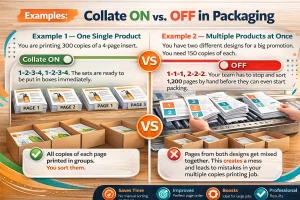
Example 1 — One Single Product
You are printing 300 copies of a 4-page insert.
- Collate ON: 1–2–3–4, 1–2–3–4. The sets are ready to be put in boxes immediately.
- Collate OFF: 1–1–1, 2–2–2. Your team has to stop and sort 1,200 pages by hand before they can even start packing.
Example 2 — Multiple Products at Once
You have two different designs for a big promotion. You need 150 copies of each.
- Collate ON: The printer finishes one product’s inserts before starting the next.
- Collate OFF: Pages from both designs get mixed together. This creates a mess and leads to mistakes in your multiple copies printing job.
Best Practices for Collate in Packaging Printing
To get the best results, always double-check your digital files first. Make sure your inserts are in the right page order before you click print. Always check your printer settings, especially for large orders.
Use the print spooler to manage high-volume jobs so your computer doesn’t crash. It is also smart to run a test print. Print just one set to see how it looks. When you use duplex printing, a test print confirms that the front and back of your sheets match up perfectly.
Common Collate Mistakes in Packaging
A common mistake is simply forgetting to check the box, which leaves you with a mountain of unsorted paper. Others forget to check the print queue for old, stuck jobs. Sometimes duplex printing settings can flip your pages the wrong way if you aren’t careful.
However, mixing up different product designs is another common error. Avoiding these small slips will save you a lot of time and materials.
Conclusion
You might be wondering for What does collate mean when printing? Print collation is what keeps your multi-page inserts and templates in the correct order. Whether you are creating custom boxes with logo or fancy custom rigid boxes, it is a major time-saver. By picking the right printer settings, you ensure a professional look. It is a tiny checkbox that makes a huge difference in how the world sees your brand.
At Packaging House US, we understand how small printing details can impact your overall packaging quality. By choosing the right printer settings, you ensure a clean, professional presentation every time.